
WordPressfrom Free
WordPress AI writer, connected without a plugin
Looking for an AI plugin for WordPress? This WordPress AI writer does not need one. It connects through the WordPress REST API with an application password that you can revoke at any time.
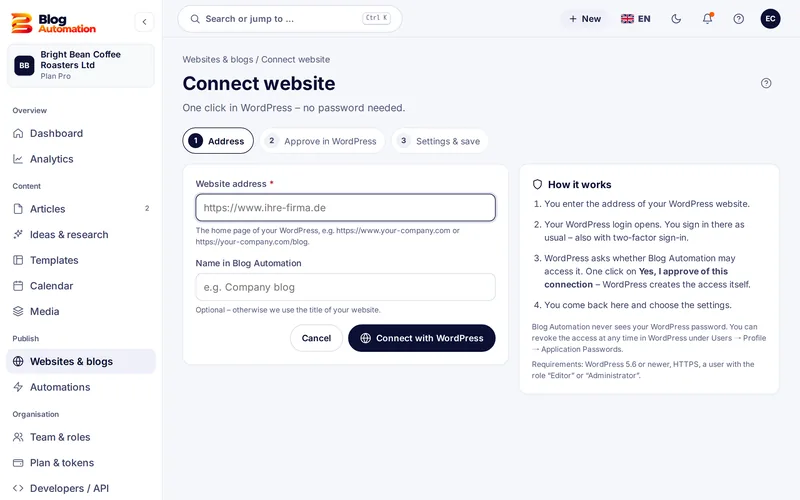
What the WordPress AI writer needs
- a WordPress website, version 5.6 or later, with HTTPS,
- a WordPress user with the Editor role (recommended) or Administrator,
- an application password for that user. Your normal login password stays private.
We recommend a separate WordPress user just for Blog Automation. Then you see in WordPress exactly which posts came through the connection.
Connected in three steps
- Address: Enter the home page of your WordPress site, for example https://www.your-company.com (external link) or https://your-company.com/blog (external link).
- Application password: Create it in WordPress under Users, Profile, Application Passwords. "Blog Automation" makes a good name. Paste user name and application password into Blog Automation.
- Test and save: Blog Automation checks the connection at once and loads categories and authors.
What goes to WordPress
A post goes to WordPress with title, text, categories, tags, excerpt and featured image. For each website you set the status new posts get in WordPress: publish right away, save as draft or pending review. You also set a default category, language, time zone, a daily limit and the colour in the content calendar.
The overview of each website shows the WordPress user, its rights, the loaded categories and whether an SEO plugin was detected.
How to auto post on WordPress safely
"Auto post" can mean sharing posts on social media. Here it means something else: Blog Automation creates the post itself and publishes it on your WordPress site on the date you set, after your team has approved it.
When the connection fails
The most common causes are:
- A security plugin such as Wordfence blocks the REST API.
- The server strips the "Authorization" header from requests.
- The website does not run on HTTPS.
Check these points and run the connection test again. If that does not help, write to us through the contact page.
WordPress only, done properly
Blog Automation works with WordPress only. Shopify, Wix, Webflow and other systems are not supported. In the Pro plan you connect up to 5 WordPress websites, in Free and Starter one.
Common question: Can I withdraw access later? Yes. Delete the application password in WordPress and Blog Automation loses access immediately. Your normal password is not affected.
Frequently asked questions
Which rights does the WordPress user need?
The Editor role is enough and is our recommendation: it may create, edit and publish posts. Administrators work too but have more rights than needed. After the test Blog Automation shows you which rights the user has.
What happens to my posts if I disconnect a website?
Posts that are already published stay in WordPress. Scheduled posts are no longer published after you disconnect. You can also just pause a website instead of removing it.
Where do I create an application password?
In the WordPress admin under Users, Profile, section Application Passwords. Enter a name such as "Blog Automation" and click "Add New Application Password". WordPress shows the password only once, so copy it right away.
Related features
- from Free
AI blog writer
From topic to draft in four steps, with brand voice, AI actions in the editor and a featured image.
Read more - from Pro
Automations
Fixed dates per website, topics from the idea board or a keyword list, daily limit and review.
Read more - from Free
Approval workflow
Draft, review, approval: with fixed and custom roles, rights per action and an activity log.
Read more
Ready for your first post?
Try Blog Automation with sample data
The demo opens at once, no sign-up needed. You see the dashboard, editor, calendar and approval just the way your team will use them.
The demo shows sample texts. The Free plan includes 200 tokens a month.