
Approval workflowfrom Free
Content approval workflow for AI posts: review first, then publish
In the content approval workflow every AI post goes through draft, review and approval. You decide who may write, review and publish; the activity log records who did what and when.
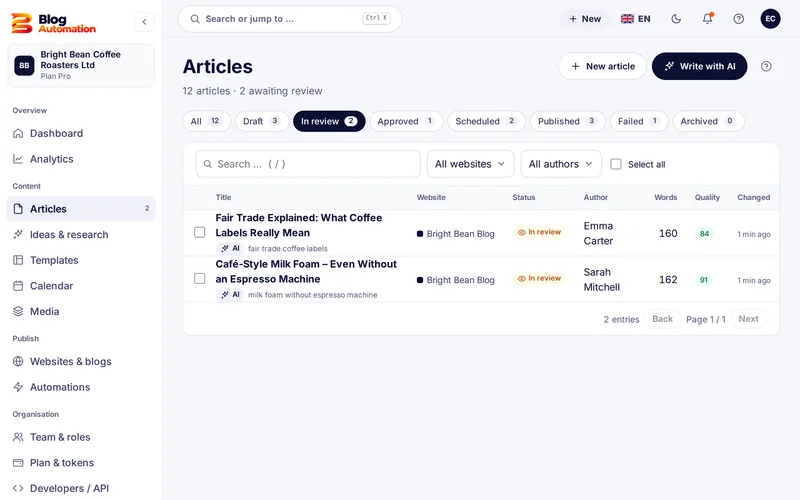
How the content approval workflow works
- Draft: A post is created with AI, by an automation or by hand.
- In review: The draft waits for someone with the "Approve" right. That person can get an e-mail.
- Approved: The reviewer checks facts, sources and author details and approves. If something is wrong, "Back to author" returns the post.
- Scheduled and published: Only after approval can the post be scheduled or published automatically.
Draft, review and approval are part of every plan. On the Free plan you work with 1 user and approve your posts yourself. On the Starter plan you invite a second person, for example as a reviewer. The approval workflow for a team of up to 5 users, with roles and individual rights, comes with the Pro plan.
Roles: who may do what?
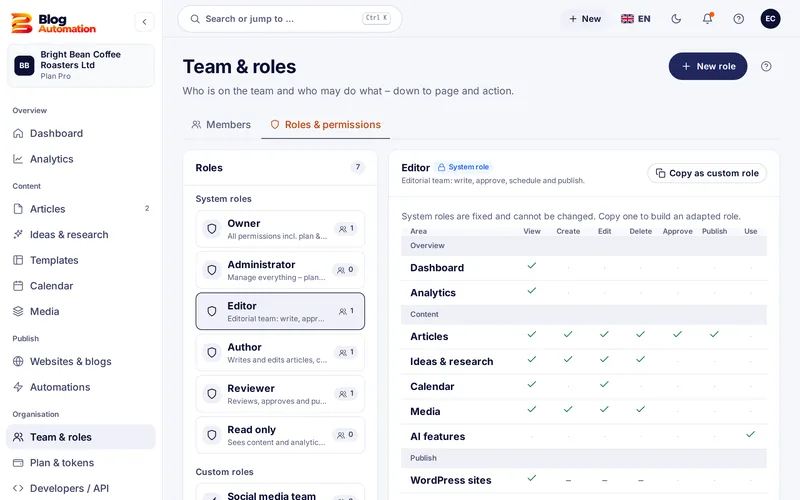
Blog Automation comes with six fixed roles:
| Role | May |
|---|---|
| Owner | everything, including plan and billing |
| Administrator | manage everything, view the plan only |
| Editorial | write, approve, schedule and publish |
| Author | write and edit, but not approve |
| Reviewer | review, approve and publish |
| Read only | view content and statistics, change nothing |
If that is not enough, copy a fixed role and adjust it. In the rights matrix you set for every area who may view, create, edit, delete, approve, publish, use or manage. You can also give individual people their own rights.
Why review matters
Google explicitly advises fact-checking and reviewing AI content manually before publishing, including titles, descriptions and alt texts (Google Search Central (external link)). Generative models predict likely sequences of words and can be wrong. A real review by people with the right knowledge catches those mistakes.
The EU AI Act reflects the same idea: for certain AI texts the labelling duty does not apply when a person has reviewed them and someone holds editorial responsibility. The approval step records who approved and when. Whether your texts fall under this rule is a question for your legal adviser. This is not legal advice.
Activity log and notices
The activity log lists every action with person and time: post created, edited, approved, automation changed, image uploaded. By e-mail you hear when a post waits for your approval, when it was published or when publishing failed. A weekly report every Monday is optional.
Common question: Can I switch the review off? The setting "Always send AI posts to review first" is on and recommended. It protects you from mistakes and matches what Google recommends.
Frequently asked questions
Who can approve posts?
Everyone whose role includes the "Approve" right. Among the fixed roles these are, for example, Owner, Editorial and Reviewer. Authors write and edit but cannot approve. With custom roles and individual rights you fit this to your team.
What happens when a post is not right?
The reviewer sends it back with "Back to author". The post goes back to editing and only appears after it has been reviewed and approved once more. Earlier versions are kept under "Versions".
Can people outside the company review posts?
Yes. Invite them to your team and give them a suitable role: "Reviewer" to approve, "Read only" to follow along. That way experts or clients can approve without access to plan and billing. How many people you can invite depends on the plan.
Related features
- from Free
AI blog writer
From topic to draft in four steps, with brand voice, AI actions in the editor and a featured image.
Read more - from Pro
Automations
Fixed dates per website, topics from the idea board or a keyword list, daily limit and review.
Read more - from Starter
Content calendar
Month and week view with a colour per website, the status of every post and scheduling of approved posts.
Read more
Ready for your first post?
Try Blog Automation with sample data
The demo opens at once, no sign-up needed. You see the dashboard, editor, calendar and approval just the way your team will use them.
The demo shows sample texts. The Free plan includes 200 tokens a month.