
Content calendarfrom Starter
Content calendar for your WordPress blog
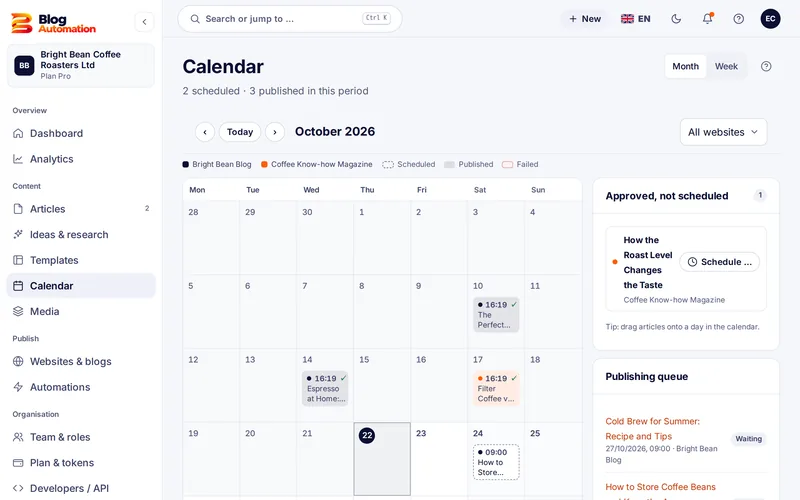
The content calendar shows what goes out this week, what is already published and where the gaps are. You schedule approved posts in a few clicks.
How to plan with the content calendar
- Approve the post: Only approved posts can be scheduled. The calendar lists them under "Approved, not scheduled".
- Pick a date: Schedule right in the calendar or in the post. The time zone of each website applies.
- Publish automatically: On the date the post goes to WordPress with categories, tags and featured image.
- See the result: Published posts are marked in the calendar. If something fails, the reason appears on the dashboard.
Month, week and several websites
Switch between month and week view. Every connected website has its own colour, and the filter shows or hides single websites. Scheduled, published and failed posts have different colours.
A steady rhythm instead of gaps
If you want to publish regularly, set up automations in the Pro plan: fixed days and times per website. The dates then fill with drafts that your team reviews first. A daily limit per website makes sure not too much appears at once.
When publishing fails
Sometimes the transfer does not work, for example because an application password was revoked in WordPress. The post then gets the status "Failed", and the dashboard shows the WordPress message under "Needs attention". You can also get an e-mail. How to check the connection is explained on the WordPress connection page.
Common question: Do I need WordPress skills for the calendar? No. You plan in Blog Automation; the transfer to WordPress runs in the background.
Frequently asked questions
How do I schedule a post?
Open an approved post and choose date and time, or schedule it right in the calendar. At the chosen time Blog Automation transfers the post to WordPress.
Can I see several websites in one calendar?
Yes. All connected websites appear in the same calendar, each in its own colour. The filter shows a single website. That way you quickly spot which blog has no post yet this week.
Which plan includes the content calendar?
The calendar and auto-posting are included from the Starter plan at $20 a month. Automations with fixed weekdays and times come with the Pro plan.
Related features
- from Free
AI blog writer
From topic to draft in four steps, with brand voice, AI actions in the editor and a featured image.
Read more - from Pro
Automations
Fixed dates per website, topics from the idea board or a keyword list, daily limit and review.
Read more - from Free
Approval workflow
Draft, review, approval: with fixed and custom roles, rights per action and an activity log.
Read more
Ready for your first post?
Try Blog Automation with sample data
The demo opens at once, no sign-up needed. You see the dashboard, editor, calendar and approval just the way your team will use them.
The demo shows sample texts. The Free plan includes 200 tokens a month.